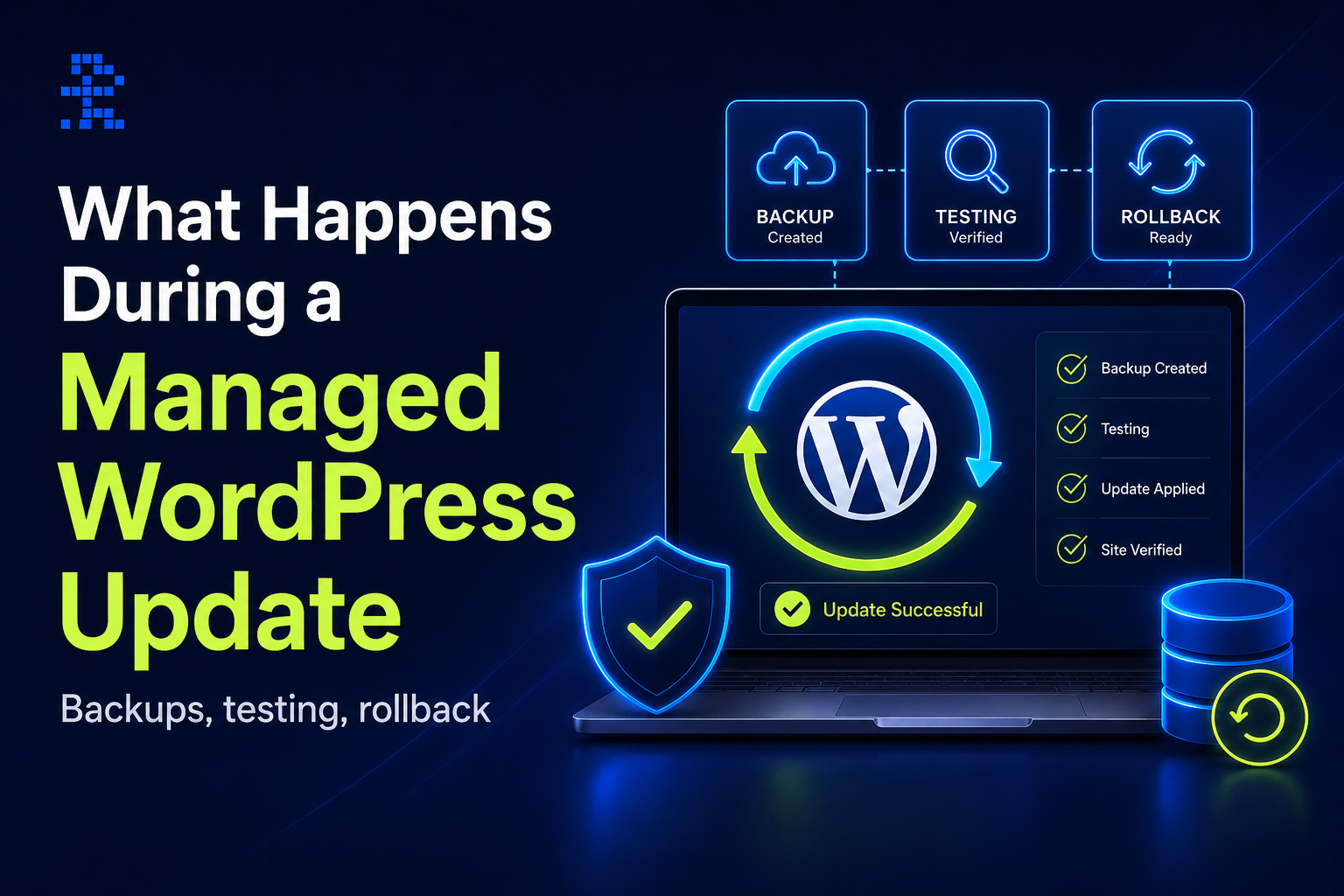
One of the most frequently cited reasons for choosing managed WordPress hosting is automatic updates. But what does that actually mean in practice? Understanding what gets updated, how updates are tested, and what happens if something breaks clarifies why managed updates are a meaningful benefit rather than just a marketing point.
What Gets Updated on a Managed WordPress Host
On WP Engine, automatic update management covers two distinct layers: WordPress core and plugins.
WordPress core updates are applied automatically by WP Engine across the platform when a new version is released. Minor version updates (security patches like 6.5.1 to 6.5.2) roll out quickly after release. Major version updates (like 6.5 to 6.6) follow a more measured rollout, giving WP Engine time to validate compatibility across the platform before applying them broadly.
Plugin updates are managed through WP Engine’s Smart Plugin Manager. This is a separate system that runs plugin updates on a schedule you define, with visual regression testing before and after each update to check that the update has not visually broken any page on your site.
| Update type | Who handles it | How |
| WordPress core (minor) | WP Engine | Automatic, platform-wide |
| WordPress core (major) | WP Engine | Staged rollout after compatibility validation |
| Plugin updates | Smart Plugin Manager | Scheduled, with visual regression testing |
| Theme updates | You (manually) | Not automated by default |
How Smart Plugin Manager Works
Smart Plugin Manager runs on a schedule you set in the WP Engine dashboard: daily, weekly, or monthly. When the update window arrives, it takes a checkpoint backup of your site, then applies available plugin updates one at a time or in batches depending on your settings.
After each update, it runs visual regression tests: it takes screenshots of key pages before the update and compares them to screenshots taken after. If a visual difference above a defined threshold is detected — a broken layout, missing images, or content that has disappeared — Smart Plugin Manager flags the update and can automatically roll back the plugin to its previous version.
You receive a report after each update run showing which plugins were updated, which passed visual testing, and which were flagged or rolled back. This gives you the update history without requiring you to monitor each plugin manually.
What Happens If an Update Breaks Something
Before any update run, Smart Plugin Manager takes an automatic checkpoint backup. If a visual regression is detected or you notice a problem after an update, you can restore from that checkpoint backup with a few clicks from the WP Engine dashboard. Checkpoint backups are separate from your regular daily backups and are created specifically before each Smart Plugin Manager update run.
For core WordPress updates applied platform-wide by WP Engine, the same daily backup system applies. WP Engine’s standard daily backups are retained for 28 days, giving you a meaningful recovery window if a platform update causes an unexpected compatibility issue with your specific theme or plugin set.
This is the practical reason why managed updates are valuable: not just the convenience of not having to apply updates manually, but the safety net of tested updates with automatic rollback capability. On standard hosting, an update that breaks your site requires manual diagnosis and recovery.
Can You Control When Updates Run?
Yes. Smart Plugin Manager lets you set the update schedule (daily, weekly, or monthly) and the time window when updates should run. Most site owners schedule updates during low-traffic hours to minimise the impact of any brief instability during the update process.
You can also exclude specific plugins from Smart Plugin Manager if you know a particular plugin requires manual review before updating — for example, a plugin that stores customer data in a custom database table that a major update might migrate.
WordPress core updates applied by WP Engine platform-wide are not individually controllable per site, but WP Engine gives advance notice of major version rollouts through the dashboard and support channels.
Frequently Asked Questions
Does WP Engine update themes automatically?
Theme updates are not automated by WP Engine or Smart Plugin Manager by default. You update themes manually from the WordPress dashboard or via WP-CLI. Major theme updates carry significant risk of breaking customisations, so manual control over theme updates is generally the right approach.
What if a plugin cannot be auto-updated safely?
You can exclude specific plugins from Smart Plugin Manager in the WP Engine dashboard. Excluded plugins remain at their current version until you update them manually. This is the right approach for plugins with complex database migrations, custom integrations, or known compatibility requirements that need testing before updating.
How is a managed WordPress update different from WordPress auto-updates?
WordPress has its own built-in auto-update system for minor core releases and, optionally, plugins. The difference is safety infrastructure: WordPress auto-updates apply changes without visual testing or automatic rollback capability. WP Engine’s managed updates take a backup before running, test visually after, and can roll back automatically if something breaks.
Do I need to be present when updates run?
No. Smart Plugin Manager runs autonomously on your defined schedule and sends you a report afterwards. You only need to take action if the report flags a failed or rolled-back update that requires your attention. Most update runs complete without any intervention required.